Routing Panel Essentials mode is designed for simple and efficient event setups, where the primary goal is to send floor audio and video to the Interprefy platform for translation and captioning.
It manages audio flow between your event audio equipment and the Interprefy platform, ensuring that floor audio is delivered clearly and consistently for translation. Translated audio and captions are then delivered to the audience via the Interprefy Mobile App or on-site caption displays.
Essentials mode provides a simple interface that can be used without complex AV infrastructure, while still ensuring reliable audio input to the Interprefy platform.
How to use Routing Panel Essentials
Accessing the Routing Panel
To begin, open the Routing Panel link provided for your event.
If prompted when opening the link, please allow access to your microphone and camera by selecting ''Allow while visiting the site'' in your browser.
The “Sound and language settings” panel will appear.
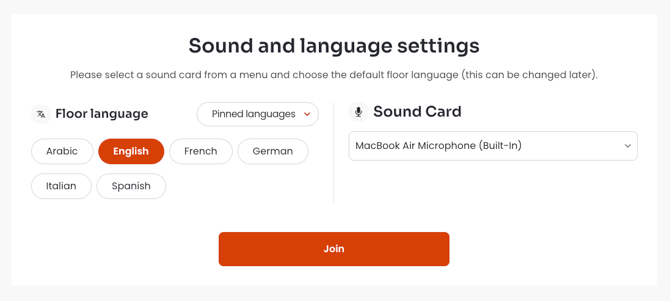
Select the Floor language (if required), choose your Sound Card (audio input device) and click Join to proceed to your session.
-
Up to 6 languages can be pinned and displayed in the panel, at the same time.
If your event has more than 6 languages, click on "Pinned languages" dropdown menu and check the languages to display in the Routing Panel. -
The Routing Panel can work with both Manual and Automatic Floor language selection.
When Automatic Floor language selection is enabled, manual language selection is not required and is removed from the panel.
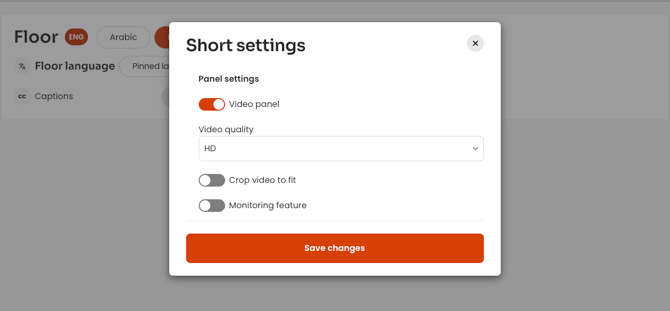
Upon entering the session, the “Short settings” window will appear.
"Video panel" and "Monitoring feature" can be enabled here, if required.
Once desired options are enabled, click “Save changes” to proceed to the Routing Panel interface.
-
Routing Panel supports video streaming when required as part of the overall event setup; however, it is not required for Interprefy AI Speech Translation or Captions, which rely on audio input only.
- Video quality can be adjusted between High Definition (HD) and Standard definition (SD). The “Crop video to fit” option is also available.
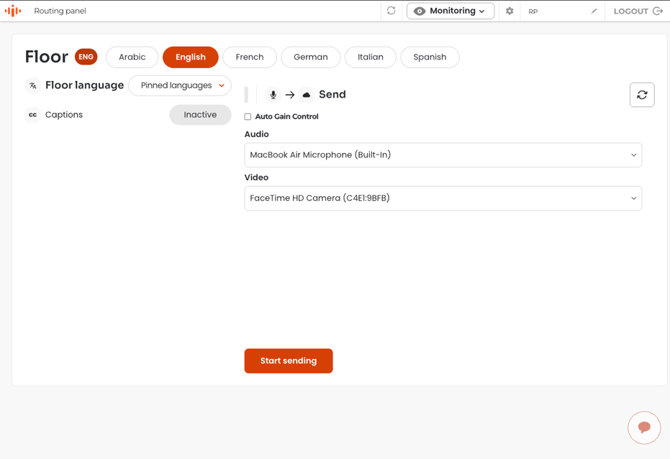
In the Routing Panel interface, confirm that the correct audio device is selected and that the floor language is set appropriately. Once confirmed, click “Start sending” to begin streaming your floor audio and video to the Interprefy platform for processing.
Starting the floor audio feed will automatically enable Captions and AI Speech Translation. Once the floor audio feed is discontinued, AI translation will also stop automatically.
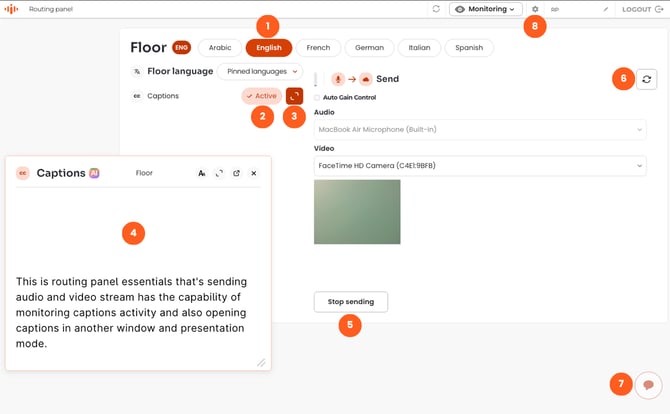
Routing Panel overview
-
Floor language selection (manual) - select the language currently spoken on the floor.
-
Captions status indicator - showing the current state of Captions (AI translation) as Active/Inactive.
-
Expand captions - displays captions window in the Routing Panel interface.
-
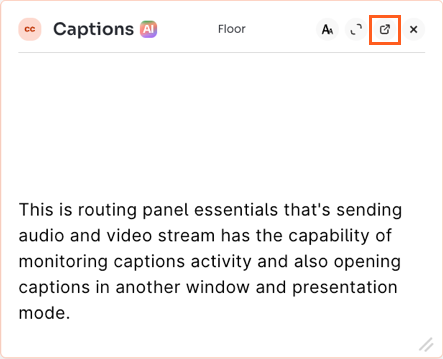
Captions window - can be moved to preferred position. Captions menu is located in top right corner of the window, containing: button to adjust font size, expand the modal, and open Captions in a new window, with access to Presentation view.
-
Stop sending - discontinue the floor audio feed.
-
Reconnect button - to restart the current audio feed.
-
Remote Support chat - when a message arrives from Remote Support the chat will flash, and a blue dot will appear. This window can also be moved to another position.
-
Routing Panel settings - if Monitoring feature has not been added during initial setup, it can be enabled at any time in the settings.
Opening Interprefy Captions in a new browser window, gives you access to Presentation Mode, allowing you to customise how captions are displayed — ideal for on-site screens or shared displays.