Routing Panel Advanced is designed for complex event setups that require full control over audio routing. It manages audio flow between your event audio equipment, the Interprefy platform, and your audience, supporting both sending audio to and receiving audio from the platform.
This mode is used in events involving interpreters, hybrid setups, or professional AV environments where multiple audio sources and channels need to be configured and managed.
Routing Panel Advanced includes all features available in Essentials mode, with additional configuration options for handling multiple language channels and bidirectional audio flows.
How to use Routing Panel Advanced
Accessing the Routing Panel
To begin, open the Routing Panel link provided for your event.
If prompted when opening the link, please allow access to your microphone and camera by selecting ''Allow while visiting the site'' in your browser.
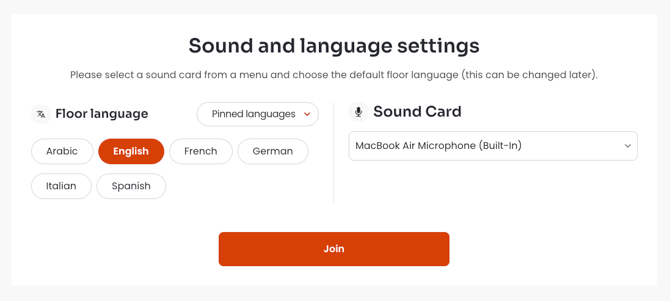
The “Sound and language settings” panel will appear.
Select the Floor language (if required), choose your Sound Card (audio input device) and click Join to proceed to your session.
-
Up to 6 languages can be pinned and displayed in the panel, at the same time.
If your event has more than 6 languages, click on "Pinned languages" dropdown and select the languages you want to display in the Routing Panel. -
The Routing Panel can work with both Manual and Automatic Floor language selection.
When Automatic Floor language selection is enabled, manual language selection is not required and is removed from the panel.
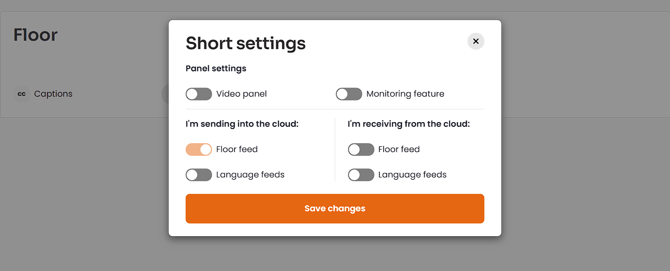
Upon entering the session, the “Short settings” window will appear.
In this step, you define how the Routing Panel will be used during the event, "Video panel" and "Monitoring feature" can be enabled here if required, as well as audio channel configuration — defining which channels will be sent to or received from the Interprefy platform (cloud).
Once desired options are configured, click “Save changes” to proceed to the Routing Panel interface.
-
Options from "Short settings" can be later edited in the Routing Panel settings. It is recommended to make changes to settings during breaks or event preparation, as applying changes will stop all audio feeds (both sent and received).
-
Routing Panel supports video streaming when required as part of the overall event setup; however, it is not required for Interprefy AI Speech Translation or Captions, which rely on audio input only.
-
Video quality can be adjusted between High Definition (HD) and Standard definition (SD). The “Crop video to fit” option is also available.
In the Routing Panel interface, confirm that the floor language is set appropriately (when using manual floor language selection), and that correct audio device is selected for each audio channel (sent or received).
Enable each language channel by using the toggle next to the language name.
Once the panel is configured, click “Start sending” or “Start receiving” for each audio channel (starting with the Floor channel), to begin streaming audio and video to and from the Interprefy platform.
Starting the floor audio feed will automatically enable Captions and AI Speech Translation. Once the floor audio feed is discontinued, AI translation will also stop automatically.
-
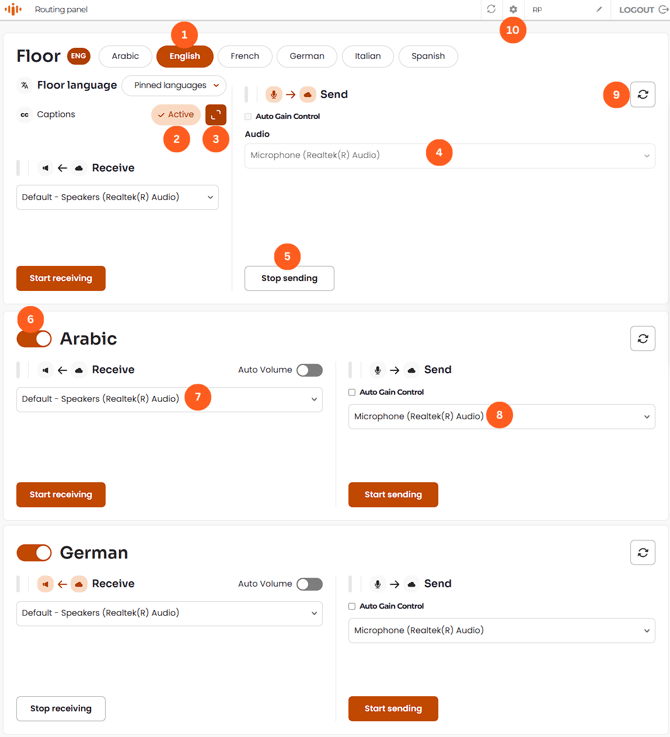
Floor language selection (manual) - select the language currently spoken on the floor.
-
Captions status indicator - showing the current state of Captions (AI translation) as Active/Inactive.
-
Expand captions - displays captions window within Routing Panel interface.
-
Audio device (Send – Floor) – select the audio input device used to send floor audio to the Interprefy platform.
-
Stop sending - discontinue the floor audio feed.
-
Language toggle – enables or disables a language channel.
-
Audio device (Receive) – select the output device used to receive translated audio from the Interprefy platform.
-
Audio device (Send – Language channel) – sending language channel from the venue to Interprefy platform.
-
Reconnect button - restarts the current audio feed. Each audio channel has its own Reconnect button.
-
Routing Panel settings - to edit the languages displayed in the panel, enable "Video panel", "Monitoring feature" and configure sent and received audio channels.
-
Remote speaker audio feed can be enabled in the “Receive” audio channel of the Floor.
-
Auto Volume feature is available for each audio channel.
Routing Panel overview
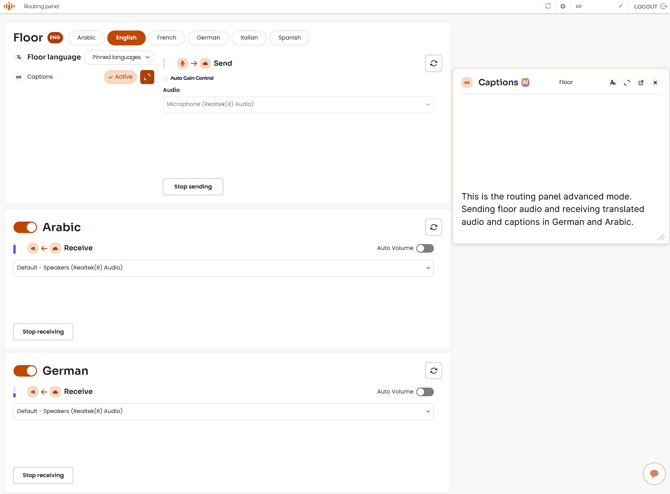
Example showing floor audio sent and language channels received from the Interprefy platform.
Captions window is displayed on the right side of the panel and can be moved to preferred position.
Remote support chat button is located in the bottom-right corner of the page.
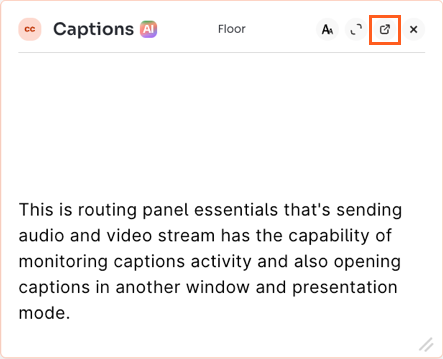
Opening Interprefy Captions in a new browser window, gives you access to Presentation Mode, allowing you to customise how captions are displayed — ideal for on-site screens or shared displays.