Bad weather, power outages and fluctuation in WiFi speed can lead to situations we all know too well: "I can't hear you" or "your video has frozen" - just to name a few.
Prevention: Ethernet cable connection
Wi-Fi is prone to interferences, hence we always recommend to connect computers to the internet via ethernet cable before joining an important session. This will ultimately lead to better internet performance and a reduced threat of sudden connectivity issues.
💡 Test your internet connection speed
Click here to measure your internet connection speed.
- Recommended speed: 10 Mbps download, 4 Mbps upload or higher
- Ping value: below 50
- Jitter value: below 15
Trouble-Shooting
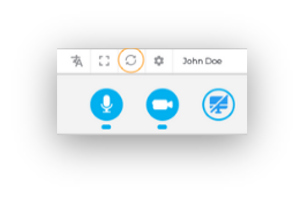
- RAL (Restart All Lines) - In case of a bad internet connection during a session, Interprefy Connect and Connect Pro offer a built-in RAL (Restart All Lines) button for quick trouble-shooting:
-
- By clicking this button, the user will temporarily be disconnected and automatically reconnected to the session within approximately 2 seconds.
- Re-loading browser - If the issue persists, re-loading the internet browser may be required.
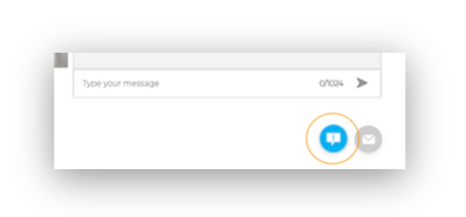
- Contact remote support - To request technical support, users can open the moderator chat, located next to the private chat in the bottom right corner of the default meeting interface.