
Before you begin
- Internet connection -Recommended bandwidth of 4mbps up/down or higher. Ethernet connection is recommended.
- Recommended browser - Latest version of Google Chrome or Microsoft Edge as they always pick the default headset and microphone.
How to log in with a token
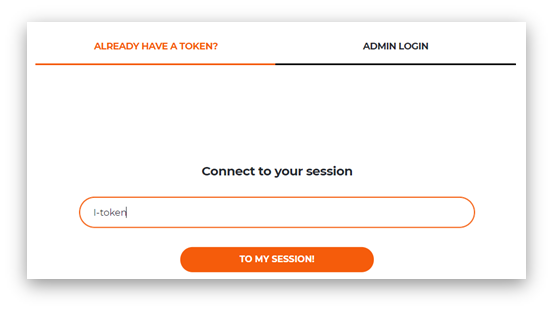
- Open Google Chrome or Microsoft Edge and go to https://interprefy.interpret.world/user/sign-in
- Enter the token provided, then click 'to my session'.
Type your full name and click on 'Submit'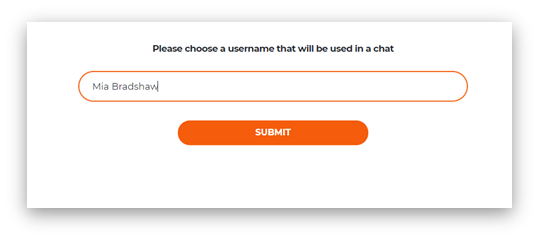 How to log in with a link
- Click on the meeting link provided by email, this will look like https://interprefy.interpret.world/loginlink?token=I-sample123
- Type your full name and click on 'Submit'
Please note:
- Your link and/or token will be communicated to you by the event organizers or Interprefy well in advance of the event.
- The token provided will always be in the form of 'I-XXXXX’
If a pre-call test is activated
If activated for your meeting, you will next be prompted to set and test your audio and video settings on our pre-call test page.
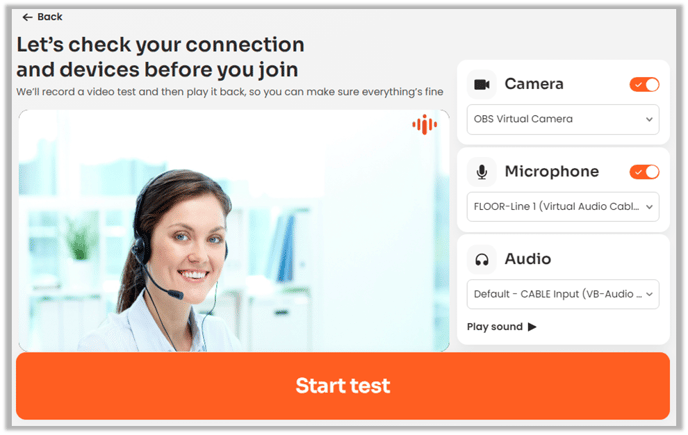
- Camera - Select your webcam from the drop-down menu. Turn your camera on/off using the slider.
- Microphone - Select your microphone from the drop-down menu. Turn your mic on/off using the slider.
- Audio - Select your audio output device.
- Play sound - Click to test if you can hear the sound through the selected audio device.
- Start test - Click to record a short sample of your audio and video, test if your internet bandwidth can support audio and video streaming and check your browser compatibility.
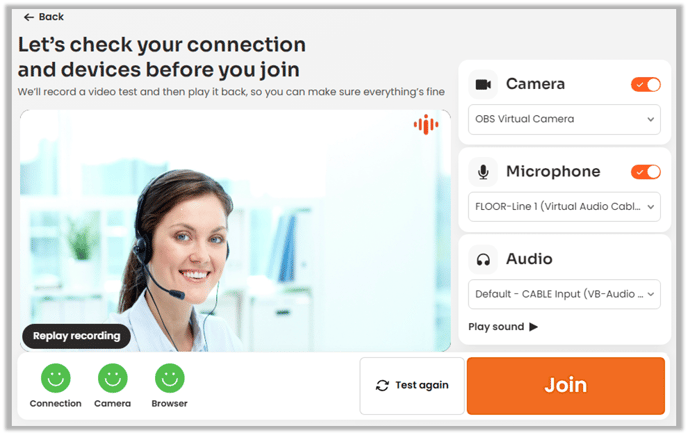
Once pre-call test is complete you will hear and see your recorded sample, click 'Join' to move on to language selection and enter the meeting.
To hear your recorded sample again, click on 'Replay recording'. And to record a new sample click 'Test again'.
To use Inteprefy pre-call test before any meeting or webinar - save this link in your browser bookmarks.