
The Interprefy Agent is a powerful AI-driven tool designed to bring real-time translation and captions directly into your Teams, Zoom, Google Meet or Webex meetings. Setting up a new instance is simple and allows for seamless integration across the most popular conferencing platforms.
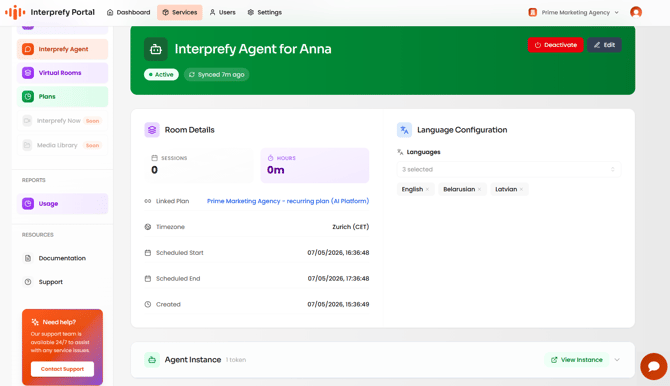
Follow these steps to deploy your Agent:
Step-by-Step Guide
1. Select Interprefy Agent
Log in to the portal and navigate to the Interprefy Agent section on the main dashboard. This is where you manage your AI-powered meeting assistants.
2. Create a New Instance
Look for the 'New Instance' button located on the right-hand side of the screen. Clicking this will launch the setup section for your new Agent.
3. Name and Plan Selection
-
Name: Give your Agent a recognizable name (e.g., "Monthly All Hands Agent").
-
Plan: Select the specific Plan you want this Agent to use. This ensures the Agent usage is recorded against your specific service agreement (Plan).
4. Set Maximum Hours (Optional)
If you want to manage your budget or usage strictly, you can specify the maximum hours this Agent is allowed to run. If you prefer to keep it flexible, you can leave this field blank.
5. Add Reference Tags (Optional)
You can add tags to help categorize your Agents (e.g., "Marketing Dept" or "Project X"). This is useful for internal tracking and reporting but can be left blank if not needed.
6. Verify Integrations
By default, the Interprefy Agent is built to be versatile. It is pre-configured to work across:
-
Microsoft Teams
-
Zoom
-
Google Meet
-
Webex
7. Add approved users
Add the email addresses of users who need to be able to use the Agent.
When an approved user invites the Agent to a meeting, the Agent will join the meeting automatically.
8. Set the languages
To add the required languages for your Agent, select 'Add a language', choose the language, and select Spoken, Translated, or both for each language.
Please note, two or more languages should be added to enable AI translation.
For single-language captions, you can add one language only, if required.
9. Select 'Create instance'
Select 'Create instance' to complete the setup. Your Agent is now provisioned and ready for use.
To view or change an Agent
Select your Agent's name to open the Agent information. Here, you will find:
- Agent Email Address: Used to invite the Agent to your meetings.
- Token & Widget Code: For custom integrations.
- QR Code: For quick mobile access to AI Speech Translation and/or Captions.
- Usage Statistics: Monitor how long the Agent has been used and view scheduled sessions.
Permissions
Use the Permissions area to:
- Access global settings for the Agent
- Add or remove approved email addresses