
What is a Virtual Room
A virtual room is a space you can use for an online meeting or event. As part of the virtual room set up you can define the languages you will need (both spoken and translated).
If you are using Interprefy Agent, you will only need to use the Audience Token, audio is captured by the Agent in your Teams, Zoom, Google Meet or Webex meeting.
How to create a Virtual Room
Step-by-Step Configuration
1. Select Virtual Rooms
Log in to your Interprefy Portal dashboard. On the main navigation menu on the left-hand side, locate and click on Virtual Rooms. This section serves as the hub for all your active rooms.
2. Create Room
Look for the "Create Room" button (typically highlighted in the top right-hand corner). Clicking this will open the configuration interface for your new room.
3. Name Your Room and Select a Plan
-
Room Name: Enter a clear, descriptive title for your Virtual Room. This helps both you and the Interprefy support team identify the room quickly.
-
Plan Selection: Choose the specific Plan you’d like the room to be associated with. This ensures the room usage is tracked against the correct Interprefy Plan.
4. Define Event Duration
Input the event Start Date and End Date.
This can be set for several months if you will be using the room for recurring meetings.
5. Set the Timezone
Select the Timezone where the room will primarily be used. This is a critical step to ensure that timezone is correct and that we use the nearest and fastest servers for your Virtual Room.
6. Configure Languages (Floor vs. Translation)
In this step you define the languages for your event:
-
Floor Languages: Select the languages that will be spoken by the speakers. Marking these clearly is vital, as these channels are the ones that will require captions generated from the live speech.
-
Translation Languages: Select the target languages that the floor will be translated into.
7. Click "Create Room"
Review your settings one last time. Once settings are confirmed, click the Create Room button to finalise the setup and push the room live into the system.
8. Retrieve Access and Integration Details
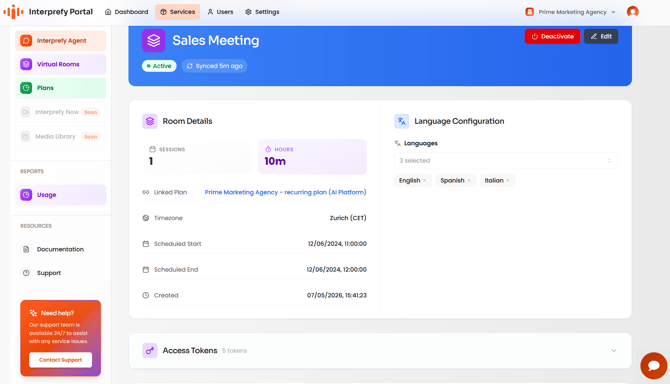
After the room is created, click on it from your list to view Room details, you can also see the usage for that room once it’s used. Here, you can find and copy:
-
Access Tokens: For audience, speakers, moderators, hosts, Routing Panel (*see below for descriptions).
-
Direct Links: For easy browser-based access.
-
Widget Codes: For embedding the Interprefy widget into a 3rd party meeting platform.
-
QR Codes: For mobile users to join the audio stream instantly via the Interprefy App or mobile browser.
Description of the tokens available for each room:
Moderator Token – Person(s) who makes sure everything works smoothly on Interprefy's platform. Remote support is usually provided by Interprefy highly specialised staff.
Audience Token – Audience in a meeting or event, they don't speak but can use the chat, when available.
Interpreter Token – Person(s) who convey in real-time the message in the source language to the target language so that the audience understands.
Speaker Token – the person(s) who will talk during the meeting, also called Delegate. They will connect to Interprefy's platform with an S-token provided by Interprefy. The interface of Interprefy's platform that they will use have all the required commands to fulfill their role.
Host Token – the person(s) who presents the meeting or event. This person is in charge of allowing others to speak on our Connect Pro platform.
Routing Panel - A tool for Remote Support engineers and Audio technicians to manage and optimize audio/video streams during multilingual events. It enables routing of floor audio, language channels, and video, as well as Captions controls while ensuring consistent quality.