![Brand_Logo_White.png]](https://knowledge.interprefy.com/hs-fs/hubfs/Brand_Logo_White.png?height=40&name=Brand_Logo_White.png)
As long as the Floor/Source is transmitting video or sharing their screen you will be able to see a video feed on the video screen of your soft console.
The video screen allows you to:
- monitor all video feeds simultaneously and focus on the one you need the most;
- view screen shares;
- view speakers.
Video stream functions:
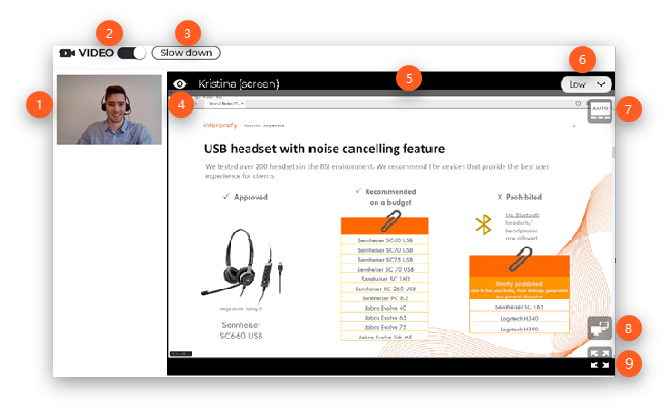
- Change feed - To switch between video feeds. Click on it to make that image bigger and make it appear on the main video screen (5).
- Toggle Video - To switch the entire video screen on and off.
- Slow down - To send a message to the host and moderator requesting that the speaker slows down:

- Hide video - To disable that individual video feed on your end.
- Main video screen - Enlarged image of the selected video or screen-share.
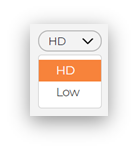
- Video quality selector - To change the quality of the video. It reduces bandwidth use and can be helpful in the event of poor internet connection.
- Active speaker display - Enabled by default. It automatically switches the video feeds to always show the person speaking.
- Move video to a new window - To open the video in a new browser window. This will use more bandwidth as the new window counts as another video feed.
- Full-screen - To enlarge the main video screen. This will change the platform overview as explained in this article.